
For a new installation, follow the steps below. If your flows already use KNX Ultimate 7, complete the upgrade guide first.
Requires Node.js 20.18.1 or newer and Node-RED 3.1.1 or newer.
-
In Node-RED, open Manage palette → Install and install
node-red-contrib-knx-ultimate. Restart Node-RED. -
Drag KNX Device into a flow. Add a gateway configuration and enter the address and connection settings of your KNX interface. Import your ETS group addresses if available.
-
Choose a group address from your installation and its datapoint. For an on/off command, use the matching boolean datapoint, such as
1.001. -
Connect an Inject node with a boolean
msg.payload(trueorfalse) to KNX Device. Connect KNX Device to Debug to inspect received telegrams. -
Review the chosen address and press Deploy. Use Inject to send the command. Enable React to response to see replies to read requests.
Your first flow, step by step
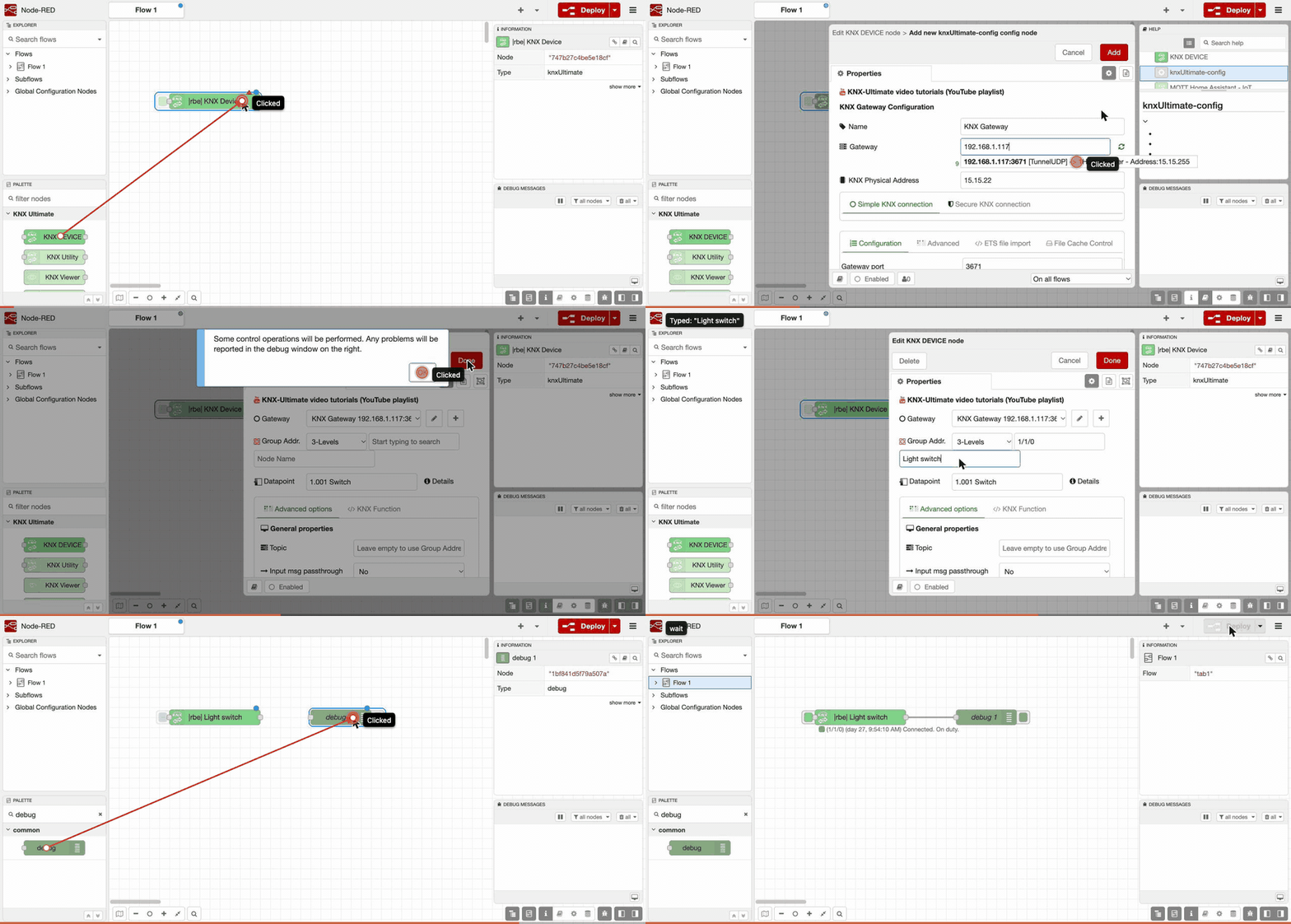
The animation below builds a first flow: a KNX Device node for group address 1/1/0 with datapoint 1.001, its gateway configuration, and a Debug node.
- Drag KNX DEVICE from the palette into the flow and double-click it.
- Next to Gateway, click +. The gateway configuration searches the network for KNX/IP interfaces: type the address of yours (here
192.168.1.117) and pick it from the list. Address, port and protocol are filled in. Click Add. - In Group Addr. type
1/1/0, give the node a name and keep the datapoint1.001 Switch. Click Done. - Drag a Debug node into the flow, wire the KNX Device output to it and click Deploy.
When the node shows Connected. On duty., every telegram sent to 1/1/0 on the bus appears in the Debug sidebar.
Read a value from the bus
Enable the manual button in KNX Device. Its actions are Toggle boolean, Send KNX Read (second item) and Write custom value. Choose Read and click the button to request the configured address. This button action is not available in universal mode. From a flow, you can also send msg.readstatus = true.
KNX Device · KNX Gateway · Examples